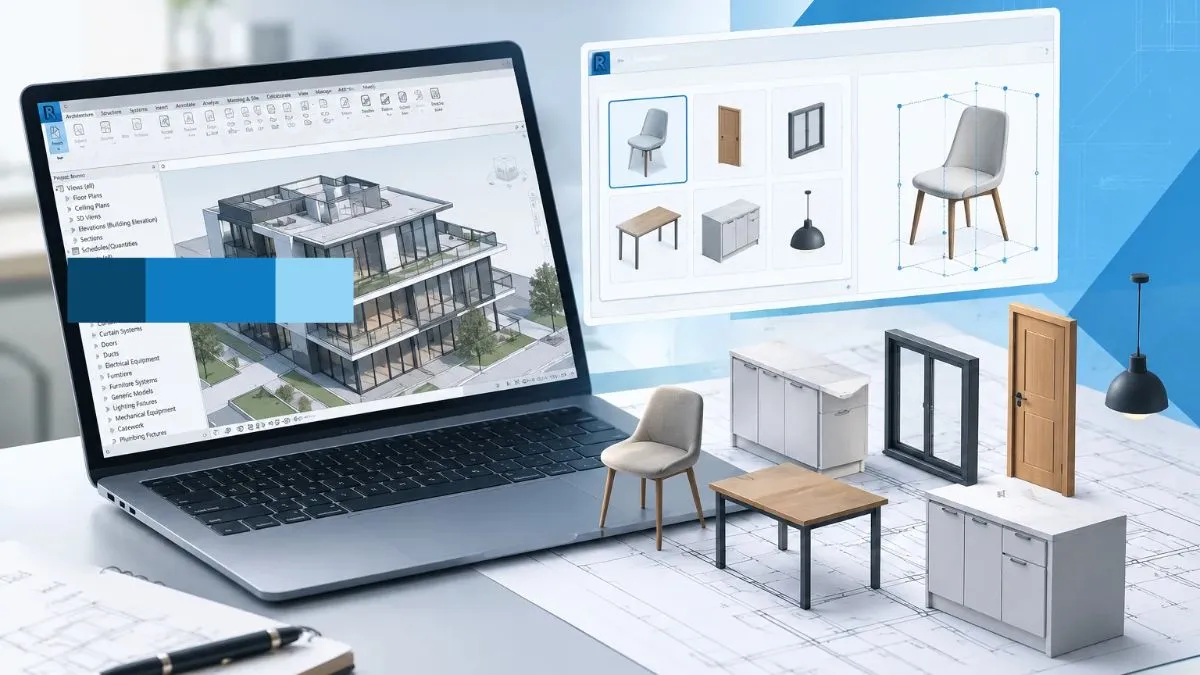
A Revit family can look great in the project it was built for, with correct dimensions and geometry, clear graphics, etc., and can still not work when the team tries to use it in other projects. Different projects come with different ranges of dimensions, types of annotations, data fields, visibility settings, etc. and different versions of Revit. A component that is quickly assembled for one project typically doesn’t survive the transition to other projects.
When designing Revit families, we must consider both ‘how to build it to make it work’ and ‘how to build it to make it last.’ Revit Family creation that is designed to be reused are deliberately crafted with parameters, data, and dimensions so that they exhibit consistent behaviour and geometry. They are built to adapt to a variety of project requirements and perform consistently. This guide covers all the above points, and sits within a broader set of BIM Services covering coordination, modelling, and documentation across the project lifecycle. along with performance testing, data structures, cross-project compatibility, and various design principles to help your team create a Revit family that earns its place in the long-term family design library.
What Makes a Revit Family Useful Across Multiple Projects?
Understanding the concept of “reusability” is crucial to discussion methods later.
Reusability Beyond the Original Project
A reusable Revit family can be easily added to projects it was never designed for. Families do not contain hard-coded dimensions, have dependencies on project-specific shared parameters, or contain geometry limited to a certain host condition.
Predictable Behaviour and meaningful Flexibility
Reusable BIM components behave consistently when their parameter values change. Family geometry resizes in an appropriate manner. Constraints are appropriately applied. Family types of limit users to the appropriate alternatives. Families do not break due to users modifying dimensions or swapping family types.
Useful Information, Not Just Accurate Geometry
A component contains the right metadata and data, and when added to a project, automatically populates the right information to schedules, tags and other project documentation. This differentiates a BIM object library asset from a drawing placeholder.
Consistency Across Users and Projects
When numerous users or different offices load the same family, the same result should occur. Clear parameter definition and naming as well as version control ensures reusability.
Reusable families ensure geometry, behaviour, information and performance are modelled appropriately. These are the four dimensions which determine whether a Revit family is truly reusable or at best meets the minimum requirement.
Five Design Principles for Reusable Revit Families
- Build Geometry Around Real Requirements
The geometry of a Revit family creation should represent the behaviour of the component in the real world and in a model, not in every single manufacturing detail. Intricate, solid geometry increases file size and reduces performance of the Revit platform. From a modelling and coordination standpoint, solid geometry should be used judiciously.
Create Revit families based on the required level of detail. A family describing a structural column should have accurate dimensions in the section and should be able to be placed with the appropriate insertion behaviour. A 3D model of a threaded bolt is not required. Start with the bare minimum required to fulfil the coordination and documentation needs of the project and add only what is required by those use cases.
If a design feature lends itself to a continuous sweep, extrusion, or blend, the element should be defined as such. When a project also requires accurate 2D drawings or CAD-based documentation, professional CAD Drafting Services can support the preparation of consistent technical drawing deliverables.
- Create Meaningful Parameters and Family Types
Revit family creation parameters control how a component behaves under various design scenarios. These parameters and families distinguish an effective Revit family from a static, parametric family.
There are two types of parameters: type and instance. An instance parameter allows a value to vary depending on where it is placed. For example, an offset from a wall, or clearance over a (manually placed) family. A type parameter is a value shared by all members of a family. Examples of type parameters include the size of wall panels in a wall system family.
An extra layer of complexity is added if an instance parameter is used in place of a type parameter. However, appropriate use of instance parameters provides family members flexibility in behaving differently in response to the requirements of the design.
Family types need to accurately reflect how the component is defined. For example, door widths and heights are defined by type. Component families can also be defined by nominal sizes, i.e. pipe fittings. Items within families can also be defined by types, as in the case of furniture that comes in different variants. Formulas can also be defined by types. Shared parameters are very helpful for scheduling and should be created once centrally rather than multiple times in different family files.
- Establish Reliable Reference Planes and Constraints
Reference planes are the building blocks of well-defined Revit family creations. They serve as the origin and an insertion point for geometry. They can be defined by relationships to other elements. Name your reference planes with mnemonics that clearly articulate their location (i.e. “Centre (Back)” rather than “Centre Back”). Constrain geometry to reference planes rather than using free floating dimensions. If a parameter is defined to drive a reference plane, and that plane is constrained to the geometry, the family will resize appropriately.
- Apply Visibility Settings and Appropriate Levels of Details
Not every part of a family needs to be shown in every view. The Revit family can be defined to control visibility at different levels of detail. The family can also be defined to be shown or hidden in different views (i.e. plan, elevation, 3D views).
Choose detail levels judiciously. Coarse-level geometry should represent a product in a schematic way, for example with a bounding box. Fine-level geometry should reflect a product in a more realistic way, with exact project forms. Complex representations of 3D solids in all views with all detail levels will prolong view regeneration time and may produce drawings with unnecessary details.
Symbolic lines, 2D representations that appear only in certain view directions allow families to display correct representations in plans and elevations without requiring full 3D representations. This is appropriate for representation of objects like doors and windows as well as other building components.
- Design Connectors and Host Behaviour Correctly
For MEP families, connections to ducts, pipes, and other systems define how a component is integrated into a system. An incorrectly placed or typed connection will break flow calculations and cause other coordination errors.
Host behaviour is of greatest concern for components that are hosted (wall or ceiling) or are facing (or planted on) another component. The right host behaviour is required for placing components in a project. A family that is face-hosted provides more flexibility in how a component may be placed. A family that is wall-hosted is appropriate when a component may always be placed on a wall.
Correct design of Connectors and Host behaviour is critical where they are applicable to a family. This is especially important to avoid placement errors in families.
How to Make Revit Families Compatible Across Projects
The first step is designing the family well. The second is making sure the family transfers without issues.
Match the Standards of the Receiving Project
Verify that family dimensions, parameter values, and project unit settings are interpreted correctly in the receiving project. Also check naming conventions, parameter definitions, and documentation standards to prevent inconsistencies. Make sure the families you are using are designed with the same naming convention and parameter as the families in the destination project. A Revit modeling services firm can create families that have been integrated with other project families rather than created as standalone families.
Plan for Different Project Requirements
Reusable Revit families should not be tied to project-specific parameters to function. Avoid using hard-coded values. Large families with multiple parameters should be broken into smaller families with type catalogue to better manage the family parameters.
Check Version and Library Compatibility
Families saved in newer versions of Revit cannot be opened with older versions. Document what Revit version the family was created in and check the Revit version requirements of the project library.
Separate Reusable Content from Project-Specific Details
Use shared parameters to allow families to be reused in other projects. Do not embed project-specific data in families.
Designing the family well is the first step. The second is making sure it transfers without problems.
Revit Family Optimization: Keeping Components Lightweight
Control Geometry and Nested Family Complexity
Imported objects and nested families add to the file weight. To do Revit family optimization, the key is to start with restraint. Only add the geometry required to meet the documentation and coordination requirements. A door family should not be nested with a door panel to allow a material override. This leads to unnecessary modelling.
Use Visibility and Detail Setting Strategically
Geometry that needs to appear only at Fine detail level should be assigned the detail level and should not appear in all views. Removing geometry from Coarse and Medium detail views keeps the views regeneration time to a minimum.
Balance Flexibility and Model Performance
Families should not be modeled with a large number of parameters. Make families only as complex as needed for the project. If a family is modeled with lots parameters, it becomes difficult to manage for the end user.
Repeated Testing of Families, not Just One Instance
Rarely does placing a family once reveal a family performance issue. Families should be tested by placing them repeatedly in a model to simulate how the families will be placed in the project. The time it takes to open a family or to place a family should be good indicators of family performance.
BIM Data and Documentation: Making Components Useful Beyond 3D
Include the Right Information Parameters
Components in a BIM model carry more than geometrical information. For instance, an ideal Revit family contains manufacturer name, product code, specification reference, material, finish, and any performance information related to the project type; these pieces of information are populated in various project documentation such as project schedules, estimate packages and specification packages.
Make Components Work with Schedule and Tags
Revit schedules can report built-in parameters and suitable project or shared parameters, depending on the category and scheduling requirements. When a parameter must appear in a tag or be used consistently across multiple families and projects, a shared parameter may be required. Confirm that the parameter is defined and applied correctly in both the family and the project. Shared parameters should be defined in the correct parameter group, and data type must be specified (text, number, length, or URL) to ensure schedules filter and sort data correctly.
Label parameters define how tags are generated. The family label that is used to define a mark of type-mark will not always align with the project’s tags. When this occurs, tags will either be blank or contain inaccurate data. Family data fields should align to the project’s tagging and annotation requirements. Revit Drafting Services help ensure that families are set up to create the correct schedules, annotations and construction drawings.
Align Family Content with Drawing Requirements
Aligning model components with drawing and documentation requirements is essential when preparing coordinated project deliverables through professional Architectural Drafting Services. Families should be structured to support the requirements for the project for which they are being developed.
How to Test a Revit Family before Reusing It
Check Geometry and Dimensional Behaviour
In the family editor, check behaviour by driving all parameters. Confirm that geometry scales correctly, and that nothing detaches from constraints. Check that proportionality and accuracy are maintained throughout.
Validate Family Types and Constraints
Check that family types are appropriately represented in each of the different family member types. Check that family member types are represented correctly in all views (2D and 3D) and in all detail levels.
Check Graphics and Visibility
Check that the family is behaving as intended when placed in different views and levels of details. Check that 2D symbolic lines are displayed in the correct direction.
Verify Data and Schedule Behaviour
Add the family to a project schedule to test behaviour. Confirm that the family is behaviour as expected and correctly captures data in the schedule. Check that shared parameters are resolved as expected if the project is using the same shared parameter file as the family.
Test Placement and Cross-Project Transfer
Place the family in different types of projects to ensure that the family is well behaved, and without placing warning messages. Families should behave properly outside of the intended project context.
When Should You Consider Professional Revit Family Creation Services?
Certain types of Revit family creation work can reasonably be handled by a project team. Creating standard architectural elements, simple modifications to existing families, and straightforward parametric families can be done by more experienced Revit users.
There are other situations that require more specialist support. Manufacturer BIM content creation, that is, developing accurate product families in Revit to the required standard, requires knowledge of the needs of design teams and the capabilities of Revit. Similarly, families that incorporate MEP system behaviours and performance require knowledge of the behaviours, systems and performance required. Families that represent irregular shapes, such as MEP equipment and specialist building elements require Revit family modelling.
There are many situations where it has been found more time effective to engage Revit Family Creation services rather than attempt to develop families internally, while meeting the demands of a live project.
When a project team seeks professional Revit Family creation services they need to define the parameters and data fields required, the target Revit version, the purpose and anticipated use in the project, as well as the expected output. If coordination, it is beneficial to look at BIM Outsourcing to cover the production of the required families.
Conclusion: Build Revit Families for Reuse, Not Just Appearance
A Revit family creation that works in one project and not in another is a liability, and not an asset. Reusable BIM components are developed based on the right geometry and revit family parameters and are tested for performance against realistic scenarios. Developing components in this matter takes a deliberate and thoughtful approach to decisions and rigorously tested. It cannot be developed using the default setting in the family editor.
You will get a good return on the investment you make for your initial families. Our team can create these families for you or improve the families in your library. Additionally, we create BIM components of manufacturer quality. For more information on our Revit family creation services, contact McLine Studios.