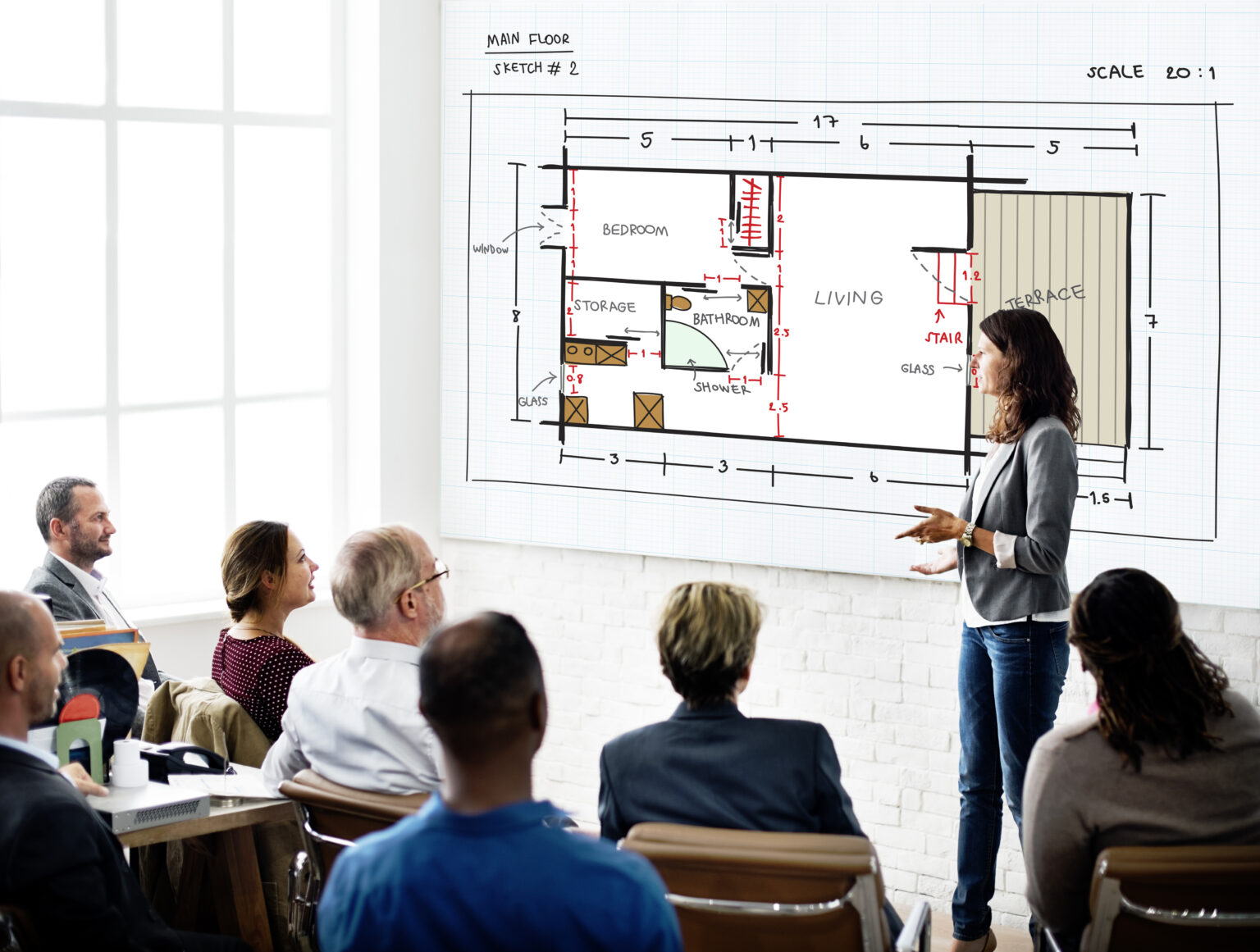
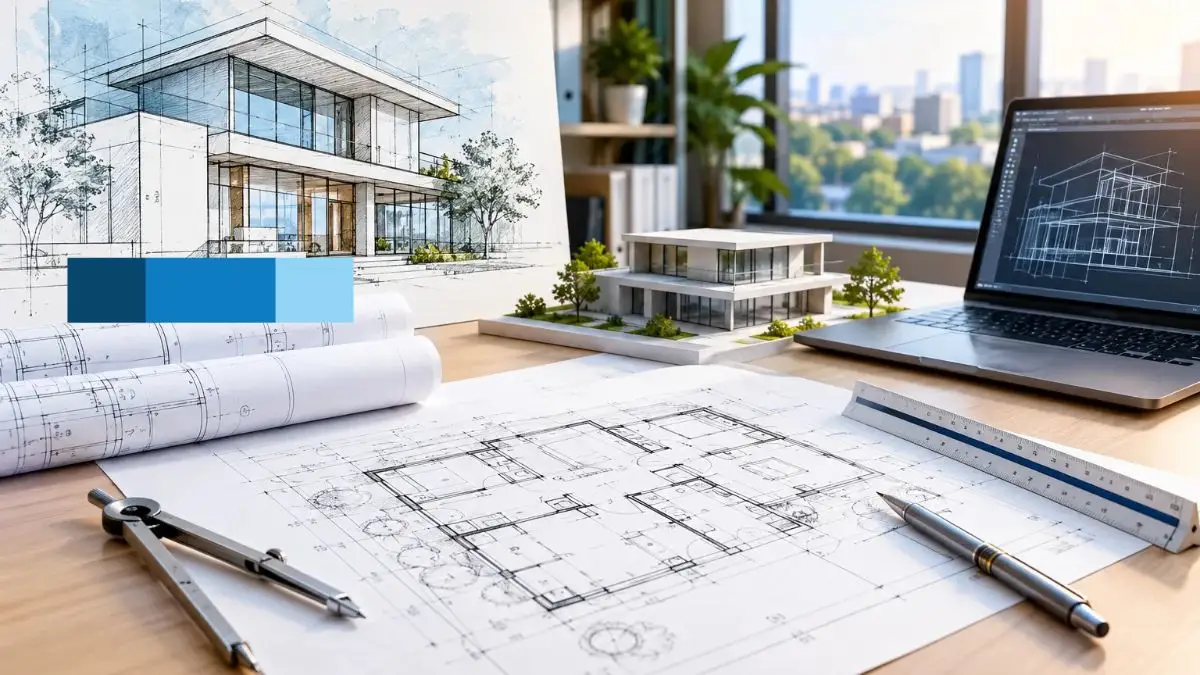
You may think managing a set of different construction plans is easy and that you can do it without any problems. But just imagine what happens when someone asks you to find a plan that is 5 or 6 years old. Don’t you feel that it would be a very difficult task to complete? Also, how much time gets wasted moving and reading different construction plans instead of moving forward with the work?
However, you can convert legacy drawings into files that will help you manage your records. This helps create accurate, usable records that help your team find, share, and review information without losing time.
Why Legacy Drawings Need More Than a File Conversion
Here is the scenario: You receive a brief to renovate a building, and all the records for the existing building are a set of yellowed blueprints, some drawings in PDF format, and older versions of the floor plans in AutoCAD from a couple of years back. Before any design work begins, those records need to be edited, organized, and standardized, not just renamed.
To convert legacy architecture drawings into CAD formats is not as simple as changing a file extension. Our goal is to produce geometry that a design team can measure, layer, and annotate, and on which a team can build confidence. Often, plans can look crisp and clean and no longer reflect the site conditions.
In this article, we will talk about a workflow to convert legacy drawings. This workflow covers a myriad of failure points in a process that usually costs time and money. McLine Studios provides services to cover the entire drafting process, and if at any point in time the process feels out of scope for your team, their CAD Conversion Services can take over the process.
What Counts as Legacy Architectural Drawings?
More forms of legacy drawings exist than most teams anticipate. Some common sources include scanned drawings to CAD candidates in TIFF, JPEG, or PDF form, hand-traced drawings in older, obsolete, or incompatible software versions in DWG or DXF format, hand-annotated prints, and as-built drawings compiled from numerous sources over time.
The key distinction is between raster and vector. A raster image (a scan or photo) represents information as a grid of pixels. It is an image of a drawing, but there are no lines that a CAD application can measure or modify. A vector image describes geometry as lines, arcs, polylines, and text. These elements can be manipulated and modified in a CAD application.
We focus on the process of digitizing CAD drawings from paper or scanned forms. Although a source may be in a digitized vector format, there could still be errors such as inconsistent units, incorrect scale, missing elements, or information that was not revised after the drawing was completed. Recognizing the type of source being worked with determines next steps.
Steps To Keep In Mind
Step 1: Audit and Prepare the Drawing Archive
Before any conversion begins, map what you have. Create drawings register. A simple spreadsheet recording for each sheet. Write the project name, building or area, drawing number, title, discipline (architectural, structural, MEP), date and revision control status, source format, stated scale, physical or digital condition, and priority.
Group drawings by type. Fag duplicate sheets and differences in revision history. Work through each drawing for legibility issues, including skew, fold lines, stains, missing corners, and annotations. Annotations can reflect the intent of the person who made them, but may not represent the current state of the drawing.
You must determine what the converted CAD drawings will be used for and what the conflict resolution strategy will be before you begin the conversion to determine the scope and how quality should be judged. Converting old architectural drawings to CAD in mechanical is not very complicated; knowing which drawings should be prioritized takes some human judgment.
Step 2: Choose the Right Conversion Method for Each Source
Not all legacy drawings require the same level of processing. The source format determines the most pragmatic conversion method.
Paper Drawings and Photographs
Paper originals and photographs need to be scanned before digital conversion. After scanning, images are traced or redrawn in CAD. Paper-to-CAD conversion is very labor-intensive but is also the most common starting point for older building archives.
Scanned PDFs or Raster Images
A scanned PDF is an image of a drawing and not a vector image. Raster-to-vector software can help speed up the tracing process for clean and consistent drawings. However, the output still requires a review for errors. Using automation, particularly for curved geometry, is not recommended. Treat all automation outputs as a starting point for a design and not a finished drawing. There are tools to convert Scanned Blueprints to CAD files, but relying on the tool to perform the majority of the work and a drafter to define design intent remains the most effective approach.
Vector PDFs
Using tools to convert Vector PDFs to DWG files can be effective as long as layers are not flattened and text remains editable. Always check the output against the source and rebuild layers. The best method for converting paper floor plans to DWG files still requires a drafter to review each sheet.
Older DWG or DXF files
DWG/DXF files created in earlier versions of CAD software often have their own problems. Often these files contain geometry, but can also include Blocks exploded in older versions and no longer located, objects representing software that is no longer in use, inconsistent layer naming, and erratic revision control. Some of these may not be obvious when a file is opened. If you must use these files, always open them in the most current supported version of the software, and check and fix any inconsistencies, layer issues, or blocks.
When drawing quality is poor, dimensions are critical, linework is complex, and especially if drawings are to be used for construction, it is generally safer to manually redraw. Sometimes automating the tracing process can be quicker; however, the process will not infer the design intent and may take drawing elements out of context.
Step 3: Scan, Calibrate and Establish Drawing Scale
Creases and shadows can distort the source material when it is scanned. Resolution should be set from 300 to 600 DPI for most traditional paper drawings. If the drawing is very large or has a lot of detail, the resolution can be increased to a higher setting. Once a scan has been made, the original copy should be kept untouched in an archive, and a copy should be given to the user for conversion work. The copy should be straightened and cropped.
One of the most frequently skipped steps during a conversion is calibrating the scale. This is one of the costliest to fix later. Before any tracings are completed, the scale is calibrated, and units are used in the CAD drawing. There are several ways of understanding how to check scale and dimensions after PDF to CAD conversion. These include finding a legible scale bar, a dimension in a room, or an intersecting grid. After a CAD drawing is completed from a paper drawing, the scale needs to be checked by referencing two or more dimensions. Never check the scale by referencing only one dimension.
There are several ways to assist in checking the scale of a converted paper drawing. Many of the ways to assist in checking scale should be performed before the conversion. If a dimension cannot be checked by referencing an outside source, it should be noted as an uncertainty, and the client should be made aware of it in the QA remarks.
Step 4: Convert or Redraw into Editable CAD Geometry
With a calibrated image or source file in place, the drafter retraces or recreates the drawing, e.g., walls, openings, the structural grid, stairs and ramps, core elements, dimensions, room labels, symbols, the north point, title blocks, and border. All items must be placed on an appropriate layer of the standard, i.e., not on Layer 0 (Default) or unnamed layers.
Separate geometry from annotation. Walls, openings, and other structural elements should be on layers for geometry, and dimensions and text on layers for annotation. Edit text to be CAD text objects rather than embedded images. The goal is to maintain the architectural drawings in an editable format.
There will be items that require some level of interpretation. These include items such as smudged hatches, partially legible annotations, and dimensions that conflict with the drawn element. Items of this nature should be flagged in working notes. A file that contains a raster image of a drawing should be verified to see if the image was actually traced.
McLine Studios CAD drafting services include, but are not limited to, a full range of redrawing and editing work that follows conversion. Normally, files are saved in the format of DWG (AutoCAD) or DXF (various platforms) for exchange. It’s best to confirm the software version that is being used before finalizing files.
Step 5: Organise CAD Layers, names and File Structure
A converted file that works is only half the job. A file that the next person on the project can navigate without a tutorial is the actual deliverable.
Layer Convention
Agreement on a CAD standard-based layer convention should happen before conversion begins. If the client has a standard in place, follow it precisely. If a standard doesn’t exist, one possibility is to use prefixes for naming layers (e.g., A-WALL, A-DOOR, A-WIND, A-DIMS, A-TEXT, A-HATCH) like in architecture. Other possibilities include using color and line weights. Keeping naming conventions and prefixes of old layers is advised if the intent of the layer is documented and understood. Bringing in 47 random unnamed layers from an old file is not acceptable.
Drawing Standard
Standardize text styles, dimension styles, block libraries, units, and title blocks across all drawings in a set. This is particularly important when multiple people work on a set, as inconsistent styles result in rework for the design team. The conversion has been completed professionally when the files have been organized so that any user can set up a sheet, adjust a dimension style, or find a block.
File and Folder Structure
Establish a standard folder structure, i.e.:
- /Project/00_ Source- original scans and source files (read-only).
- /Project/01_Working – working files.
- /Project/02_QA – files for quality assurance.
- /Project/03_Deliverables – released and accepted files.
- /Project/04_Archive – revised and superseded files.
Knowing how to organize layers in architectural CAD drawings and folders together is what enables effective revision control. Name files predictably, and retain the original drawing and revision number provided by the client. Never overwrite originals, and avoid names such as final.DWG and final2.Dwg.
Step 6: Run a Quality-Control Check Before Delivery
A Quality Assurance (QA) check is required for converted drawings. The checklist should include the following units and scale. At least three key dimensions cross-checked against the source; geometry closure on rooms and enclosures; alignment of walls, grids, and openings across sheets; no duplicated or missing lines; correct layer naming and mapping; text legibility and editability; line weights are plotting correctly; external references are resolved; drawing extents are rational; file opening is done without errors; and a clean PDF plot matches the source.
Compare output and source sheet by sheet. Dimensional discrepancies must be documented and not resolved. Interpretation, omission, or other deviations during tracing must be noted. For critical construction drawings, have a second reviewer independently review the tracing.
This step is the most important in responsible architectural CAD conversion. The conversion of drawings to an editable format does not mean the drawings are up to date and represent the site conditions and compliance with the current building codes and standards. For projects requiring verified as-built drawings, McLine Studios offers as-built drawing services for field-verified documentation. Site measurement and qualified professional review are required steps beyond conversion.
Step 7: Package and Hand Over Organised CAD Files
A complete handover package consists of converted CAD files in agreed formats, plotted PDFs of all sheets, an updated drawing register with details of issued revisions and revision control history; a notes document listing assumptions, flagged items and unresolved discrepancies; units and software version details; CAD standards and layer conventions and naming; and a drawing register showing details of issued revisions and revision control.
Archive the originals in an agreed location, separate from working files, with read-only access and retain for the life of the project. A well-structured handover means the receiving team can locate, revise, and reuse drawings without repeating the audit you just completed. This is the true value of organising conversion correctly. The next project that touches this building gets a head start, and everybody benefits from this efficient process.
When Should Legacy CAD Drawings Be Converted to BIM
CAD and BIM are distinct, and deliverables are not interchangeable. CAD creates organized 2D drafting consisting of line work, text, and management of layers in a drawing. BIM creates a digital, rich, integrated environment that allows representation of 3D geometry, defines materials and properties of elements, and carries information required for facilities management, as well as other coordination data and schedules.
The question “when should old CAD drawings be converted to BIM?” is determined through project needs. Conversion of CAD to BIM is justified where the project requires 3D model-based integration, coordination, and quantity take-off, or the project has mandated BIM procedures for procurement. It does not follow that the conversion becomes justified simply because the source drawings are old. A dependable BIM model still requires reliable source geometry and a clearly defined Level of Development.
McLine Studios offers CAD-to-BIM services and Revit modelling services for projects that require a full model-based workflow. If your brief requires it, define the software, Level of Development, and required data before scoping the work.
Common Mistakes to Avoid During Legacy Drawings Conversion
- Converting without checking scale. Always compare to a known dimension before tracing.
- Retaining every legacy messy layer. Establish a clean standard of layer naming at the beginning of the process and not at the end.
- Overwriting original control. Use revision control and keep issues and working files separate at all times.
- Assuming automation catches design errors. Review raster-to-vector outputs to check for missing geometry and intent.
- Omitting a QA notes document. The design team should communicate various assumptions to avoid costly design errors.
How McLine Studios Can Support Your Architectural CAD Conversion
If your team has the drawings but not the drafting capacity, McLine Studios can take care of the full conversion workflow, or specific stages of it (from drawing registration and assessment of source documents, through to organised, quality-assured CAD documents). For more detailed information, please visit our Architectural Drafting Services.
To provide the most accurate estimate, be prepared to discuss the following:
A sample of representative drawings.
Source documents (paper, scan, PDF, old DWG/DXF).
- Total Drawing count.
- Size of Drawing sheets.
- CAD standards and output format.
- The time frame within which the conversion is required.
- Reason for the conversion.
Noting known issues (poor quality scans, conflicting revision levels, missing sheets) will help to scope the project and provide a more accurate architectural CAD conversion estimate. To discuss your requirements, contact McLine Studios.
Conclusion
The conversion of legacy architectural drawings to CAD happens in a series of defined steps. Audit the archive, appraise the source drawing quality, determine the right method for legacy drawing conversion, calibrate the traces and drawings, organize CAD files, do a QA check, and finally hand over the drawings.
If any of the steps in the process are skipped, problems occur downstream. For instance, the archive is viewed with skepticism, layers are not named, and quality assurance checks are not done. Making exceptions to the process creates an environment of distrust with the archived drawings.
If you need your drawings converted and organized, reach out to McLine Studios.